
Last updated: February 11, 2026
Match links a downloaded bank transaction to something you already entered in QuickBooks (like a bill payment or invoice). Categorize assigns an expense or income category to a brand-new transaction QuickBooks hasn’t seen before.
If you’re staring at hundreds of uncategorized transactions and clicking the wrong button every time, you’re wasting hours. This post walks you through exactly when to match, when to categorize, and how QuickBooks’ 2026 AI updates make both easier (if you know what to look for).
Why This Matters for Your Books
Every time you hit “Match” on a transaction that should be categorized, you create a duplicate entry. Every time you categorize something that already exists, you double-count an expense or sale.
The fix is simple once you know the difference. But if you’re doing it wrong, your P&L is off, your reconciliation won’t balance, and your CPA will have questions.
Here’s the decision rule: if you already entered it manually (bill, invoice, bank deposit, transfer), use Match. If it’s new and you haven’t recorded it yet, use Categorize.
What “Match” Actually Does
When QuickBooks downloads a transaction from your bank feed, it checks your existing records. If it finds something with a similar vendor name, date, and amount, it suggests a match.
Matching does three things:
- Links the bank transaction to your existing record (bill payment, invoice payment, deposit, or transfer).
- Marks both as “cleared” so they show up in your reconciliation.
- Prevents duplicate entries in your books.
QuickBooks can now suggest partial matches and combined matches (like one bank withdrawal that covers two bills). You’ll see a confidence score. When it says “top suggestion,” QuickBooks is pretty sure. When it says “consider,” double-check before you click.
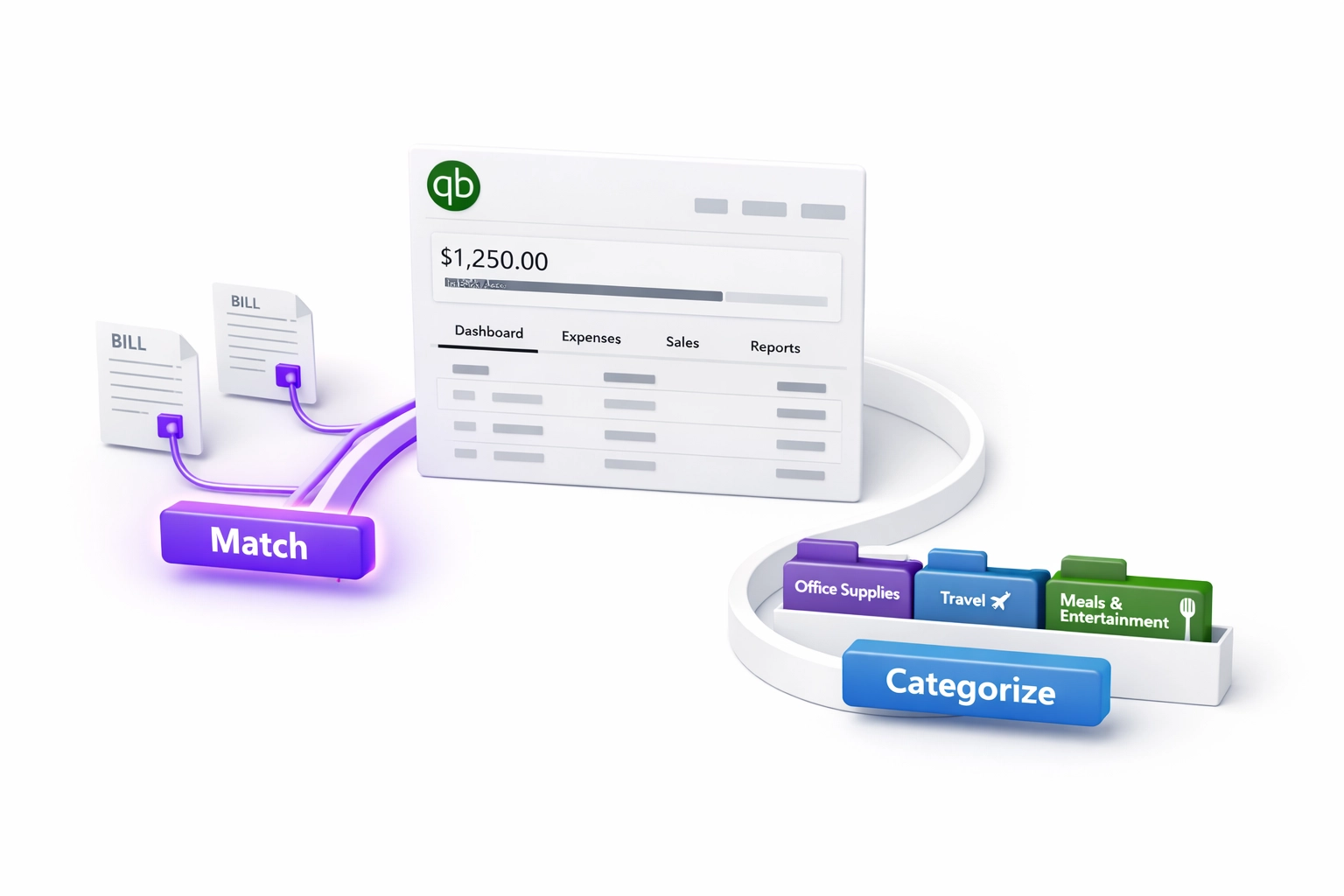
If the suggested match looks wrong, click “find other matches” or switch to “categorize” and treat it as a new transaction.
What “Categorize” Actually Does
Categorizing assigns a transaction to a specific account on your chart of accounts. You’re telling QuickBooks: this expense is Office Supplies, this deposit is Sales, this withdrawal is Meals.
Once you categorize a transaction and click “Add” (or “Post”), QuickBooks records it as a new journal entry. It won’t link to anything you entered manually.
This is what you use for:
- Credit card charges you never entered as bills.
- Bank transfers that weren’t recorded yet.
- Vendor payments made directly from your bank account.
- Customer deposits that didn’t come through an invoice.
QuickBooks will suggest categories based on your history with that vendor, the memo line from the bank, and similar past transactions. If you always categorize Staples as Office Supplies, it will suggest that again.
The key tip: fill out the “Payee” column every time. That’s how QuickBooks learns. The more consistent you are, the better the AI suggestions get.
The Best Tips and Tricks for Bookkeeping in QuickBooks Online
Here are the practical tips and tricks for bookkeeping that keep your banking page clean and your books accurate.
Workflow habits (speed + accuracy)
Workflow habits (speed + accuracy)
-
Review your bank feed daily or weekly, not monthly.
The longer you wait, the harder it is to remember what each transaction was for. Daily takes 5 minutes. Monthly takes 3 hours and you’ll make mistakes.
-
Check the “Categorized” tab for mistakes.
QuickBooks moves categorized transactions into a separate tab. Review this weekly to catch accidental duplicates or wrong categories before month-end close.
Automation (rules that save time)
-
Set up bank rules for repeat transactions.
If you pay the same vendor every month (software, rent, insurance), create a rule. QuickBooks will auto-categorize it going forward. Rules work for both Match and Categorize.
Split and classify correctly
-
Use the split feature for mixed transactions.
If one bank withdrawal covers Office Supplies and Meals, don’t just categorize it as “Other Expense.” Click “Split” and assign each portion to the correct account.
-
Learn the difference between “transfer” and “categorize.”
If you’re moving money from checking to savings, that’s a transfer (not an expense). If you’re paying a vendor, that’s an expense (categorize it). This is one of the most common mistakes we see in small business bookkeeping.
Reconciliation order (prevents duplicates)
-
Reconcile your bank account before you categorize everything.
Start by matching the transactions you already entered. Then categorize the rest. This keeps your reconciliation clean and catches duplicate entries early.
What to exclude (keeps P&L clean)
-
Use the “Exclude” button for personal expenses and transfers between your own accounts.
Don’t categorize your owner’s draw as an expense. Exclude it. Same for transfers between checking and savings. QuickBooks still records the bank activity, but it won’t hit your P&L.
-
Don’t skip the payee column.
QuickBooks uses this to suggest future matches and categories. If you leave it blank, you’re training the system to give you bad suggestions.
These simple tips and tricks for bookkeeping can save you hours every month and prevent costly mistakes at tax time.
What Our Bookkeeping Services Include
We’re a Los Angeles-based bookkeeping firm certified in QuickBooks Online and Xero. Here’s what we handle when you work with us:
- Clean up your existing QuickBooks file (uncategorized transactions, duplicate entries, wrong account mappings).
- Set up your chart of accounts and bank rules to speed up categorization.
- Review and categorize your bank feed weekly or monthly (your choice).
- Reconcile all bank and credit card accounts.
- Close your books each month and send you clean financials (P&L, balance sheet, cash flow).
- Coordinate with your CPA for income tax filing (we don’t provide income tax advice, but we make sure your records are ready).
We also handle sales tax tracking, payroll reconciliation, and business license renewals when needed. Every client gets a dedicated bookkeeper and access to our team in LA.
Want to see what clean books look like? Book a 15-minute call and we’ll walk you through your current QuickBooks file.
How Much Professional Bookkeeping Cleanup Costs
Cleanup pricing depends on how many months of transactions you need categorized, how messy your chart of accounts is, and whether you have payroll or sales tax to reconcile.
Here’s the typical range:
- Light cleanup (3 months or less, no major errors): $500 to $1,200
- Standard cleanup (6 to 12 months, duplicate entries, some payroll): $1,500 to $3,500
- Heavy cleanup (2+ years, multiple entities, construction job costing): $4,000 to $8,000+
Most small businesses fall into the standard range. We give you a fixed quote after a 15-minute review of your QuickBooks file.
Ongoing monthly bookkeeping starts at $400/month for simple service businesses with one bank account and one credit card. If you have payroll, inventory, or multi-state sales tax, expect $600 to $1,200/month, depending on transaction volume.
We don’t charge by the hour. You get a flat monthly rate so you can budget.
How Long Does the Training Process Takes
If you’re doing your own bookkeeping and want to learn the right tips and tricks for bookkeeping in QuickBooks, here’s the realistic timeline:
- Week 1: Learn the difference between Match and Categorize. Set up your chart of accounts correctly.
- Week 2: Create bank rules for your top 10 repeat vendors. Practice categorizing transactions daily.
- Week 3: Run your first reconciliation. Fix any errors from the first two weeks.
- Week 4: Close your first month-end. Review your P&L and balance sheet for obvious mistakes (negative inventory, inflated expenses, wrong sales totals).
Most business owners can handle basic categorization and matching in 2 to 3 weeks if they commit 30 minutes per day. The hard part is staying consistent. That’s where most DIY bookkeeping falls apart.
If you don’t have time to train yourself or you’re already behind, outsourcing is faster. We can clean up 6 months of transactions in 2 to 3 weeks and train you on the basics during the process.
When to Match vs. When to Categorize: Quick Decision Chart
Here’s the decision tree we use:
Was this transaction entered in QuickBooks already as a bill payment, invoice payment, deposit, or transfer?
- Yes → Match it.
- No → Categorize it.
Next, look at QuickBooks’ match suggestion and confidence score.
- Green confidence score, and amount/date/vendor match → Accept the match.
- No suggestion, or details look wrong → Switch to Categorize.
Finally, handle internal money moves correctly.
- Transfer between your own bank accounts → Use Transfer (not Categorize).
- Vendor payment or customer deposit → Categorize it.
If you’re not sure, check your existing records first. Search for the vendor name and amount in your expense or bill list. If you find it, match. If you don’t, categorize.
These tips and tricks for bookkeeping work for 95% of transactions. The other 5% (complex splits, partial refunds, foreign currency) require custom handling.
Common Mistakes We Fix All the Time
Duplicate transactions from matching and categorizing the same item.
This inflates your expenses and throws off your reconciliation. Always check your existing records before you hit “Add.”
Categorizing owners’ draws as business expenses.
Your personal withdrawals are not deductible. Use the Exclude button or categorize them as Owner’s Draw (equity account, not expense).
Using “Ask My Accountant” as a catch-all category.
This is fine as a temporary placeholder, but don’t let it pile up. Review and recategorize these monthly.
Ignoring the bank feed for weeks, then rushing through 200 transactions in one sitting.
You’ll make mistakes. Daily or weekly reviews are faster and more accurate.
Not reconciling before you file taxes.
Your CPA needs reconciled books. If your bank balance doesn’t match QuickBooks, something is wrong.
Want us to audit your QuickBooks file and catch these mistakes before they cost you? Request a free bookkeeping review.
FAQ: Match vs. Categorize in QuickBooks Online
What happens if I accidentally categorize a transaction that was already entered?
You’ll create a duplicate entry. Your expense total will be wrong and your reconciliation won’t balance. To fix it: go to your Categorized tab, find the duplicate, and delete it. Then go back to the Banking tab and match it to the original entry.
Why does QuickBooks suggest the wrong match sometimes?
The AI looks at vendor name, date, and amount. If you have two similar transactions in the same week, it might suggest the wrong one. Always check the details before you accept a match. If it’s wrong, click “find other matches” or switch to “categorize.”
Can I undo a match after I’ve accepted it?
Yes. Go to your bank register, find the matched transaction, and click “Undo.” This unlinks the bank download from your original entry. You can then re-match it to the correct transaction or categorize it fresh.
How do I handle a bank withdrawal that covers two different bills?
Use the Split feature. Click “Split” instead of selecting a single category. Then assign each portion to the correct vendor and account. QuickBooks will match or categorize each split line separately.
What if my payroll shows up as one big bank withdrawal?
Don’t categorize it as “Payroll Expense.” Match it to your payroll journal entry (if your payroll software syncs to QuickBooks) or categorize it as a split between Payroll Expenses, Payroll Taxes, and Employee Reimbursements. Get help from your bookkeeper or payroll provider if you’re not sure how to split it.
Should I categorize sales tax collected or exclude it?
If you collect sales tax from customers, don’t categorize it as income. Set up a Sales Tax Liability account and categorize sales tax separately from your revenue. QuickBooks has built-in sales tax tracking that automates this if you turn it on.
Does it matter if I use QuickBooks Desktop vs. QuickBooks Online for these steps?
The Match and Categorize workflow only exists in QuickBooks Online. Desktop uses a different bank feed system called “Bank Feeds” with Add, Match, and Record options. The logic is similar, but the buttons and screens look different.
Should I connect my bookkeeper or CPA to my bank feed?
Yes, if they’re handling your monthly categorization. They can review and match transactions without needing your bank login. Make sure they’re set up as a user in QuickBooks with the right permissions. We coordinate with CPAs regularly for income tax prep, but we handle the bookkeeping side (categorization, reconciliation, and financial close).
Disclaimer: This post covers bookkeeping processes in QuickBooks Online. We do not provide income tax advice. For questions about tax deductions, filing deadlines, or tax strategy, consult your CPA. We work closely with CPAs to ensure your books are accurate and ready for tax filing.
Need help getting your QuickBooks banking page under control? We’re LA-based, QBO and Xero certified, and we specialize in cleanup and monthly bookkeeping for small businesses. Book a call or check out our bookkeeping services to see what we include.
